Showing posts with label email encryption. Show all posts

14 October 2022

Encryptomatic OpenPGP for Windows Brings Strong Encryption to Desktop and Outlook Email

Encryptomatic OpenPGP is the strong public key encryption tool for Microsoft Windows, and also Microsoft Outlook. Use it to apply encryption protection to files on your Windows PC.  You can also use it to encrypt and decrypt Outlook email messages. Today we want to provide you with a an overview of the Encryptomatic OpenPGP Outlook integration.

When you first launch Encryptomatic OpenPGP, the installation wizard walks you through creating a new OpenPGP key pair (a pair consists of a public key you can share with the world, and a private key that must remain confidential).  Your key pair allows you to securely communicate through encrypted email.  Anyone wanting to send you a secure email will encrypt the message using your public key;  only your private key can decrypt or open the message.  It's very important to protect your private key, and keep it private!  You can also import most other OpenPGP keys created by other software packages into Encryptomatic OpenPGP

After downloading and installing Encryptomatic OpenPGP from the developer's website,  you can access its functions from a new Outlook email window.  The software integrates into the Windows and Outlook menu systems.  Its location in the Outlook toolbar will depend on whether you are using Outlook's classic or simplified menu.

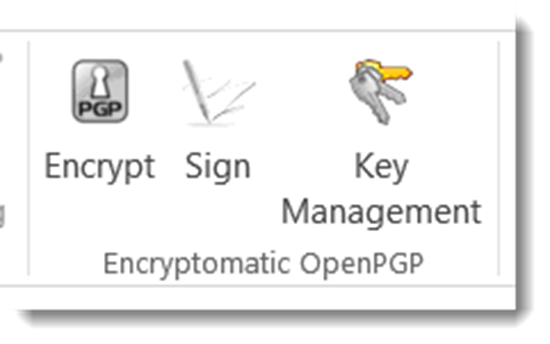
This image shows how Encryptomatic OpenPGP appearsif you have selected the classic Microsoft Outlook toolbar.

Encryptomatic OpenPGP tools displayed in Outlook 2021 classic menu.
Classic Outlook toolbar and Encryptomatic OpenPGP

If you choose to use Outlook's simplified toolbar, you will need to click or tap on the expansion button to view the Encryptomatic OpenPGP functions.

Encryptomatic OpenPGP tools displayed in Outlook simplified menu.
Encryptomatic OpenPGP integrated with Outlook simplified menu.

Encrypting message can be done by clicking on the Encrypt button.  You can also automate encryption by setting rules.  Rules allow you to tell Encryptomatic OpenPGP when it should always encrypt a message, such as when a specific email address or domain is present in the message's TO: field.

To make use of this functionality, go to Settings > Rules.  Next, type the email address or domain, choose whether the rule causes the software to encrypt the email, sign the email, or both, and then choose "Add New Rule."

Setting Email Encryption Rules by Domain or Email


Encryptomatic OpenPGP also works with standard OpenPGP key servers so you can publish your public key, or discover public keys for other users.  Key servers are still widely used, but they concept is not ageing well.  If you choose to use key public servers, you may find that spammers have harvested your email. In some cases there have been "attacks" on public key servers uploading false public keys for various email addresses.


Public OpenPGP Key Servers Are Supported


Encryptomatic OpenPGP allows you to include private key servers.  For example, you could upload public keys to your company's own key server, if they have one.   Just beware of the common pitfalls if you choose to use the open and well known public key servers.

Encryptomatic OpenPGP provides you with options that help you configure how it operates. You'll find them in the Settings area.

When you send an encrypted message, your private keys are secured by your password.  You can set a delay for how often Encryptomatic OpenPGP should prompt you for a password.  The default is 5 minutes, meaning that if you send another encrypted email within 5 minutes of the last encrypted email, you won't be prompted again to provide the password.  This is a matter of personal workflow, but generally, 5 minutes or less is the most secure opsec.

Encryptomatic OpenPGP operational settings.
Operational Settings

Encryptomatic OpenPGP add-in Security settings.
Security Settings

Encryptomatic OpenPGP is free for personal use.  We ask businesses to support the project by purchasing an affordable annual license.  For more information, please visit the Encryptomatic OpenPGP website.

28 September 2020

Encryptomatic Announces the Availability of OpenPGP for Windows Desktop and Outlook.


We appreciate all of the support we have received from users of Encryptomatic OpenPGP add-in for Microsoft Outlook. Today we are very pleased to announce that we have extended its encryption capabilities to include folders and files on the Windows desktop.  

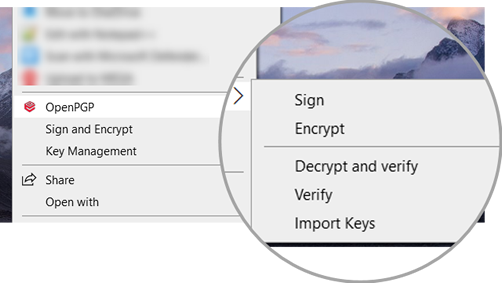
In the latest release, Encryptomatic OpenPGP now includes Windows desktop functionality and integration with the Windows right click context menu.

Screen shot showing OpenPGP integrated with Windows desktop right click context menu. Capabilities incude Sign and Encrypt, and Key Management..

By downloading and running the signed installer package, Encryptomatic OpenPGP will integrate with Windows desktop and Microsoft Outlook (if available), then launch a wizard that will guide new users through the process of creating a key pair.


For information on downloading and installing Encryptomatic OpenPGP, visit the product homepage.


06 November 2019

Encryptomatic OpenPGP for Outlook is Updated

Encryptomatic OpenPGP add-in for Microsoft Outlook has been updated. The latest version is 2.6.5 and is now available for download.

This release resolves several user reported issues and is recommended for all users.

The numerous enhancements in this release include:
  • Improve message wording for unsigned messages.
  • Added an option to decrypt attachments only.
  • Improvements to text formatting.
  • Allow extending a key's validity.
  • Fixed an issue with opening signed inline messages.
  • Resolved issue where auto conversion from html body to plain text body adds extra spaces to the message text.
  • Improved decryption trigger for non encrypted emails.
  • Resolved  an issue where selecting today's date as expiration date when creating key produces wrong expiration date (+>100 years).
  • Fixed problem where Add in can not open signed multipart message.
  • Resolved issue where Detail box after decryption does not open if something failed or if message is un-signed.
  • Resolved issue where key creation and expiration time are not UTC https://tools.ietf.org/html/rfc4880#section-3.5
  • Fixed an issue where signature verification may fail when it should be successful.

Encryptomatic OpenPGP is an add-in for Microsoft Outlook 2010, 2013, 2016, 2019/365 that brings OpenPGP email encryption to the Outlook toolbar. It is used by companies and individuals to send end-to-end public key encrypted email messages from Outlook,

Learn more about Encryptomatic OpenPGP at our website, and download the software.  Encryptomatic OpenPGP is free for personal, journalism, activist and non-profit uses, and very affordable for business/government uses.

14 May 2018

Statement about eFail email encryption vulnerability.

Today we learned through Electronic Frontier Foundation (EFF) of an exploit known as efail that can compromise the text of OpenPGP encrypted messages through a combination of factors.

Developers at Encryptomatic LLC will be studying this issue in the hours and days ahead and will respond with software updates to Encryptomatic OpenPGP for MS Outlook if mitigation is necessary.

EFF is advising all PGP users to pause in their use of OpenPGP email encryption tools and seek other modes of secure end-to-end communication for now. This would include halting the use of Enigmail in Thunderbird, GPG for Outlook, and Encryptomatic OpenPGP for Outlook. 

26 April 2018

Encryptomatic OpenPGP Add-in for Outlook, version 2.5 released

We've updated Encryptomatic OpenPGP email encryption add-in for Microsoft Outlook! Version 2.5 is now available. Please update through your software [options > settings > check for updates], or download from the official Encryptomatic product website. https://www.encryptomatic.com/openpgp/
This release solves several errors reported by users and improves the user interface.

Screen shot showing how to update Encryptomatic OpenPGP for MS Outlook from within the software.
Update Encryptomatic OpenPGP for MS Outlook

Send any questions to Encryptomatic Support. You can use the "Chat" button on our Facebook page, or aEncryptomatic.com.

03 November 2017

MessageLock Development is Ending.

MessageLock is an email encryption add-in for Microsoft Outlook . It is the product that launched our company over a decade ago. So it's with some sadness that we announce that we have decided to stop development on MessageLock, and that we will be ending support after 2018.


If you are still using MessageLock, we encourage you to consider moving to the free Lockbin add-in for Outlook. Lockbin makes it easy to communicate securely with anyone.  You can get a free Lockbin account now and decide later if the additional premium services are worth a $4.95/mo subscription.


You can download the free Lockbin add-in for Outlook directly from https://lockbin.com


Why are we ending MessageLock development?
When it was launched 12 years ago, MessageLock made email encryption easier for thousands of Microsoft Outlook users.

Demand for MessageLock has not kept pace with other products that we offer, including an Outlook add-in for OpenPGP, Lockbin, and PDF Postman.  The frequency of Microsoft Office updates have made it impractical to continue supporting MessageLock, given the demand.


Will MessageLock stop working?
No, your copy of MessageLock will continue to work, but it will not be supported on upcoming versions of Microsoft Office Outlook


Is Lockbin.com the only option?
While Lockbin is a great option for communicating securely and has an excellent add-in for Outlook, at a customer's request, we will gladly transfer MessageLock licenses to our other products at no charge, including:

Encryptomatic OpenPGP add-in for Outlook:  www.encryptomatic.com/openpgp

PDF Postman add-in for Outlook: www.encryptomatic.com/pdfpostman

If you have you any questions or suggestions for how we can make your transition from MessageLock easier, please contact us.

24 January 2017

Understanding OpenPGP Public and Private Keys

Email encryption has never been easy. The complexity of encrypting emails has frustrated the adoption of the PGP protocol in the decades since Phil Zimmermann released it to the world.

PGP doesn't work the way most people conceptualize encryption, and has been difficult for most to grasp.  It's easy to fall back on the metaphor of a safe with a single combination that both locks and opens the safe.   It's easy to think of knocking on a door, and someone asks "What's the password." If the password is correct, passage is granted.


If someone steals your password, then they can get into your stuff.  A password that both opens and locks something is called a symmetric key password.  If this password is weak and easily guessed, or if someone you have entrusted the password to isn't careful with it, then you have been defeated.  


Open PGP works differently from symmetric key passwords.  Open PGP is asymmetric.


There are two keys in PGP (actually, there can be subkeys, but lets not go there right now).   One key is public and can be known to the world.  The other key is private, and must be kept secure.


If you were going to send me a PGP encrypted email message, you would need to know my public key. You can use my public key to encrypt files and messages that you want me to see. My public is not a secret. 


In fact, here is my public key.  You can know it.  I have published it to a well known key server so you don't have to keep asking me for my public key.  If you want to send me a secure message, you can use my public key.  My public key is not a secret.


If I want to open the encrypted message that you send me (the message you encrypted with my public key), I have to use my private key.  Only my private key can open a message that has been encrypted using my public key.


That is the beauty of Open PGP.  Public keys can be shared openly. We don't have to worry that someone will overhear me sharing my public key with you.

It's like a safe with multiple combinations.   One combination was published in the newspaper, and lets anyone open a door on the safe and put something in. The other combination is a secret and only lets me take something out of the safe.


How can private key unlock something encrypted with a public key?

Oh, so you're a math enthusiast?  For open PGP to work, you really only need to accept the idea that the keys are mathematically related.  You don't have to understand the math, but you should feel comfortable enough to trust it.  It involves working with very large prime numbers.  But if you're interested in elliptical curve cryptography, you read more about it here.

Why don't more people use Open PGP?

Most people don't send encrypted messages because they don't have anyone who wants to receive an an encrypted message.  Message encryption works best when it happens automatically, behind the scenes.  Unfortunately, until recently many large companies that provided communication platforms did not take protecting your messages very seriously.  There is no email encryption option in Gmail or Yahoo mail.  It's difficult enough just to setup an email client like Microsoft Outlook or Thunderbird.  Then, installing the special software to add email encryption is another level of complexity. Then, generating a PGP key pair (public/private) and sharing the public key.... well, you get the idea.

First people need to be convinced that there is a benefit to complexity.  It's easy to convince ourselves that we, "have nothing to hide," and that nobody would be interested in our email anyway.


An easy way to begin to dabble in encryption is to install and use Signal by Open Whisper Systems. It's free and easy to use. Signal is the best implementation for IM encryption that I have seen.


If you are a Microsoft Outlook user, you're welcome to use Encryptomatic Open PGP add-in. We've tried hard to make it easy to install and use, and it's free for personal use.


Thunderbird with the Enigmail add-in is an excellent choice.


Encryptomatic also operates Lockbin.com.  Lockbin lets you send messages to anyone by email, securely, and puts a buffer between you and the technology.


We hope these tools will help you take back your privacy and allow you to communicate confidently.


27 July 2016

Encryptomatic Offers OpenPGP Email Encryption Add-in for Microsoft Outlook

Screen image of Encryptomatic OpenPGP add-in in Outlook 2013.
Encryptomatic OpenPGP add-in for Microsoft Outlook

In late 2015, we launched Encryptomatic OpenPGP add-in for Outlook due to the expense and installation difficulties we were having with other PGP email encryption add-ins for Outlook. We needed a product that installed easily, didn't contain any ad-ware, offered a signed installer package, and was so easy that even we could use it. In the end, we had to build our own OpenPGP add-in to get the features we wanted.

As a company, we have always believed that encryption needs to be part of every Microsoft Outlook user's security arsenal.  When the product was released last year, the uptake was slow, and we had a few rough edges to work out. Since then, we couldn't be more pleased with the reception that Encryptomatic OpenPGP has received from business people, private individuals, non-profit organizations, journalists, the security community and even governments.

If you are a Windows Outlook user who wants to learn more about encrypting emails, but  you don't have a Ph.D. in cryptography, we think you'll appreciate how easy it is to install and use Encryptomatic OpenPGP.


28 December 2015

How to Select Email Encryption Software? 4 Practical Questions to Answer Before Making a Choice.


Every day, we field phone calls, live chats and (unencrypted) email messages from people who are in search of information about email encryption.  The caller will usually begin their Q&A with a very general statement such as, "I need to encrypt emails. Tell me how to do it."

Because Encryptomatic LLC has been helping people encrypt sensitive emails for more than a decade, this is where I usually pause the conversation to get more information.  By the time I get to speak to the caller, they have already been overwhelmed with arcane terms, even more arcane encryption technologies, government regulations that threaten terrible consequences, prices that range from hundreds of thousands of dollars to free open source software, and they are confused.

Before I frustrate them any further, I ask them four questions that will help me determine whether or not any of our products are a fit.

1. Which email client, if any, do you or your organization work with?

Start with your email client and work backwards.  If you represent a company with 1,000 desktops, and everyone is a seasoned Microsoft Outlook user, then you really want to find a solution that works well with Outlook. Likewise, if you use Thunderbird, or Gmail, that's where you should begin your search.

2. What regulations bind you?

Understanding the requirements of your industry is crucial.  Don't take shortcuts. It will serve you well to make a knowledge investment here.  Convince your boss to send you to that industry security conference so that you can obtain this expertise for your organization. Beware of any sales people who tell you that they are already "compliant," and that you can just trust their self-certified software.  While you can certainly take their advice (or my advice for that matter), what your organization needs is an in-house expert who has some exposure to the industry regs that bind you. Also be aware of compliance and archiving requirements for your industry.

3. Who will be receiving your encrypted messages?

Don't forget that sending encrypted emails is only half of what is required.  You can send secure emails all day long, but it won't help if the recipient cannot receive your messages.  Understand who is the intended recpient, and how much work are they willing to do to open your messages.  Do they share your motivation to encrypt email messages?  It is different to ask someone who is tech saavy to install encryption software versus someone who is a casual customer. Make sure that your important intiative to protect email communications doesn't fail at the point of reception.

4. Who are you willing to deal with?

Selecting email encryption software for your organization is a big commitment in training, implementation and processes. It means partnering with your supplier to protect crucial communications.  Don't choose the wrong company to work with. Encryption software will need regular updates. You will have questions and need answers, so make sure they answer the phone and respond to emails.

Open source software is great for the right companies,  especially those with a developer on staff who understands encryption and can fix bugs along the way. If that's not your company, then working with a software publisher that issues updates and can respond to your customization requests will be important.

Which Email Encryption Solution is Best?

If there was a single answer to that questions, your job would be easy.  You could just go into the market and find the best price and voila! Problem solved.

As you no doubt have discovered, there are many different approaches to email encryption. Lets break a few of them out.

OpenPGP
Pretty Good Privacy, or PGP has been around since the 1990's and is still generally considered to be both the most secure method of email encryption, as well as the most difficulty. In this case, high security equals high difficulty.  PGP is supported by both large corporation entities such as Symantec as well as a core of dedicated open source encryption enthusiasts with a passion for privacy.   Each person has a public key that they share with the world, and a private that they keep safe and secret.  Anyone can encrypt an email for you using your public key, then you use your private key to unlock that message. The math is complicated, but it works very well.  Just remember: share you public key, and protect your private key.

Encryptomatic Open PGP add-in for Outlook, shown in Outlook 2016 toolbar.
OpenPGP Add-in for MS Outlook


Encryptomatic LLC has contributed to OpenPGP with an add-in designed specifically for Microsoft Outlook users.  We wanted to make it accessible, so Encryptomatic OpenPGP for Outlook is free for personal use, journalists, activists and non-profit organizations, and affordable for everyone else. You can learn more and try it free.


Symmetric Key Solutions
There are lots of email encryption solutions that rely on the sender and receiver knowing the same key.  These are generally quite easy to use, but less secure and the key (or password) must be shared privately between the sender and receiver, and this sharing creates a vulnerability.

Symmetric key email encryption has its place. It's easy for recipients.  Encryptomatic LLC has designed a couple of symmetric key email encryption add-ins for Outlook.

MessageLock is useful when both recipients have Outlook and MessageLock. The process of sending and receiving secure messages can be made seamless, automatic and invisible.

Screen image of MessageLock add-in for Outlook.
MessageLock email encryption for Outlook


For cross platform compatibility and ease of use, our PDF Postman solution is hard to beat. PDF Postman encrypted emails and files and places them within an encrypted PDF envelope, which means that any recipient who knows the password and has a device with a PDF reader can open the message.

Image showing PDF Postman message in Gmail inbox.
PDF Postman for Outlook


Email Encryption as a Service
Many companies have discovered that they need something between end-to-end OpenPGP and simple password encryption. That is where a mediated solution might be the best fit.  Encryptomatic LLC operates Lockbin.com, which implements encrypted messaging as a service that enables sending and receiving to anyone.  The recipient does not need special software. A simple and non-invasive signup process for a free Lockbin account is all that is asked of the recipient. Management of public and private keys happens behind the scenes, even while the Lockbin acocunt holder maintains full control over their public/private key pair.

While there are many other service providers in this space, Lockbin differentiates itself through its longevity and through a product set that includes online access via Lockbin.com, an Android app on Google Play, a Java app and an convenient add-in for Microsoft Outlook.

The downside to using email encryption as a service is that it is never trustless. The service provider could, if required by law, capture the credentials and supply them to the demanding authority.


In conclusion...
We hope this has been useful. Feel free to contact Encrptomatic's support and sales people. We will be happy to discuss your requirements, and recommend the best product for your needs as we understand them, even if it is not our own product.  Life is too short for unhappy customers, and so if you are not a good fit for our products, we will tell you so.

If you found this article helpful, please tell us below or feel free to share.


01 September 2015

What is the Best Email Encryption Software For Microsoft Outlook? Four Add-ons Reviewed. (Part 2)

This is the second article in a two part series that examines the four email encryption add-ons developed for Microsoft Outlook by Encryptomatic LLC. I will assume you have absorbed the basic idea between symmetric and assymetric encryption schemes in part one.

Why does Encryptomatic LLC offer four different add-ons for encrypting Outlook email?  Why not just one? Each add-on has a sweet spot based mainly around processes.  It's no use sending a highly secure message to someone who will never be able to read it. Likelywise, if there is very little protection, then the message is probably best left unsent.

All of add-ons, if used responsibly, can provide a high degree of privacy for the message, especially against non-state actors. If you want to protect your message from people inside your company, your ISP, or Google, then any of our addons will suffice.  If you are trying to avoid NSA eavesdropping, then the best answer for you is OpenPGP.

Encryptomatic OpenPGP


Our new OpenPGP add-on for Microsoft Outlook will join our product lineup in late 2015. It is currently in beta. If you are interested in trying the beta, please email supportline at encryptomatic.com

We decided to create this product after listening to customers who were required to use OpenPGP to communicate with insurance companies.  They had no choice in the selection of the encryption method; they had to use OpenPGP, and they were struggling with the cost and complexity of installing it.

We also learned that some of the offerings available were simply not working very well in Outlook. They were difficult to use, and referenced outside applications for key management.  While Encryptomatic OpenPGP is still a work in progress, we believe that compared to other addons in the market, ours has the easiest setup and implementation process, a fair price (free for personal use) and a use process that is simple and unobtrusive.

OpenPGP email encryption add-on for MS Outlook.
Encryptomatic OpenPGP addon toolbar installed in Microsoft Outlook
Encryptomatic OpenPGP provide the ability to encrypt, sign and manage keys, and is interoperable with other PGP software.  We recommend Encryptomatic OpenPGP wherever PGP is used, and when security and privacy trumps convenience.  As OpenPGP integrations with Microsoft Outlook go, we think you'll find our software to be the most useable available. If not, please let us know and we'll make it better.


Price: Encryptomatic OpenPGP is free for personal use.  Contact support at encryptomatic.com for business pricing.

Lockbin


Lockbin is a service for secure communication build around convenience, and the ability to send a message to anyone. It is typically used by doctors, lawyers, accountants, transcriptionist,  and other smaller office professionals who need an effective and practical way to communicate with  patients, clients and customers who are not sophisticated enough to implement OpenPGP.

Although Lockbin has a free add-in for Microsoft Outlook, the secure messages can also be retrieved by signing in to Lockbin.com,  on an Android app, or through the Lockbin Java application.

Screen shot showing the icons of the Lockbin toolbar in Outlook 2013.  The icons are titled: Settings, Receive Messages, and Send Request
Lockbin email encryption toolbar in Microsoft Outlook.
Lockbin uses public/private key encryption, but has simplified the process.  All messages on the Lockbin servers are encrypted at all times. No private keys are accessible on the servers, even to staff.

Lockbin gives you the ability to easily send secure messages to anyone. When you want to send a message to someone who is unknown to Lockbin, it will send an invitation to the recipient inviting them to a free account.  The signup process is free, immediate, simple, advertising free and non-invasive. 

Lockbin works best when both parties have a Lockbin account, but you can optionally send a password protected symmetric key encryption message to the recipient.

Price:
There is no charge for the Lockbin add-on for Microsoft Outlook.  Lockbin basic accounts are free. Premium accounts start at $4.95 per month for a single user, with discounts for multiple users.
Download the Lockbin addon for Outlook.

PDF Postman

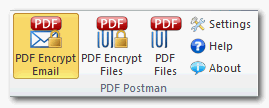
PDF Postman toolbar in Outlook 2013. Buttons read "PDF Encrypt Email," "PDF Encrypt Files," and "PDF Files."
PDF Postman encryption addon for Microsoft Outlook

PDF Postman is intended as a uni-directional communication process. That is, if you need to privately send a message and/or file to someone who cannot be bothered to sign up for anything or install special software, and a reply is not expected, then PDF Postman may be a good fit for you.

PDF Postman uses the common Portable Document Format, aka PDF files, to protect your messages.  AES-256 bit strong encryption is built into the PDF specification. Any spec compliant PDF reader such as Adobe Reader, can decrypt a PDF Postman message. This is useful because it means PDF Postman messages can be opened across any device platform: Windows, Linux, iOS, Android -- any device that has a compliant reader.

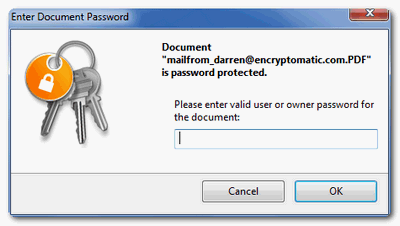
To open a PDF Postman encrypted PDF file, the recipient simply clicks on it. The encrypted PDF file is automatically loaded into the viewer, which recognizes that the file is encrypted and asks for a password.

PDF Exchange viewer prompting "Please enter valid user or owner passwrod for the document."
PDF viewer prompting for a password.
 When the correct password is entered, the PDF message can be viewed.

Price:
PDF Postman is $69.99 for a single license and one year of updates and support.
Download a free trial of PDF Postman

MessageLock

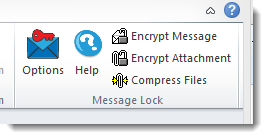
MessageLock toolbar. Text reads, Options, Help, Encrypt Message, Encrypt Attachments, Compress Files.
MessageLock toolbar in Microsoft Outlook

MessageLock is a simple and seamless end-to-end email encryption option for Microsoft Outlook. It is at its best when all users have Microsoft Outlook and MessageLock.

MessageLock can be sent to automatically encrypt messages to other MessageLock users. This is convenient and makes sending secure messages a essentially a background task that does not interrupt the sender or recipient.

MessageLock supports using different passwords for sending and receiving messages. Messages may be decrypted automatically when received and placed in the normal Outlook e-mail list.

If you will be regularly communicating with a small group of other Outlook users and end-to-end privacy is desired, then MessageLock may be right for you.

MessageLock also has an integration with Lockbin, so that you can send and receive messages through the Lockbin service. This makes MessageLock useful as both a end-to-end system, and as a "send to anyone" system.

Price
MessageLock is $49.99 for a single license and one year of updates and support.
A free 15 day trial is available to download.

Which Email Encryption Add-on Is Best?

If you are still unclear which of the four Outlook email encryption add-ons we discussed is best for you,  just try them!  All are available on a 15 day free trial.

If you have any questions, post them in the comments below, or email us our Sales team at sales at encryptomatic.com. You can also call us, 1-651-851-4902.

We are always willing to listen to your situation and recommend the best product to fit your specific situation.


What is the Best Email Encryption Software For Microsoft Outlook? Four Add-ons Reviewed. (Part 1)

E-Mail encryption has quickly moved into the mainstream. Once the exclusive domain for spies, protecting our email communication will soon be as common as locking the doors and windows to our homes.  When email encryption is not mandated by law to protect certain kinds of data (Patient Health Information, for example), it is still a good idea.

Encryptomatic LLC has helped tens of thousands of companies find practical ways to encrypt email communications end-to-end. This article looks at four add-ons for Microsoft Outlook that our company developed and currently supports.  These add-ons are:


Why did we develop four add-ons, and not just one, especially when they are not compatible with each other?  We believe that the best e-mail encryption is the one that gets used. And while there are differences in overall defendability between the algorithms,  if the solution is so complicated, convoluted and impossible to implement, then it provides no protection in the end.

Each of our products as a "sweet spot" where it does certain things very well, mostly around process and convenience. In this article we will discuss each of our products, why it came to be, and what we see as the sweet spot for that product. By creating four differet products, our intent was not to confuse you, but to build a solution that would be a great fit for your business processes.  So that you will actually use it.

Symmetric versus Assymetric Key Encryption

Before we begin, let me say a few words about email encryption.  If you already understand this concept, then feel free to skip ahead to the next section.

The most difficult part of email encryption for the sender and receiver (outside of setting up the software) is exchanging keys. These keys are used to protect and open messages. An appropriate key is hopefully a very long and random sequence of numbers, letters and characters. Hopefully you would never use a key such as "Password123."  A key can also be computer generated, and split into a public part and a private part using complicated math.

OpenPGP is an assymetric scheme, which means each person particpating has a two keys: a public key and a private key. You are free to share the public key with anyone. You tweet your public key or even post it to Facebook. It is for the world to see. Your public key is used by others to encrypt messages destined for your inbox.  The amazing thing is that only your private key can open messages that have been encrypted with your public key.  It's important to keep your private key absolutely private.  But your public key can be given away to anyone.

In symmetric key encryption schemes are little more simple. The the same password that encrypts a message is used to decrypt the message.  It's sort of like those old movies when some knocks on a door and is asked "What's the password," before they can enter through.  A symmetric key must be kept secret by both the sender and the recipient.  It must also be agreed on between the sender and recipient.  Unless symmetric keys are agreed upon by two individuals in person, smmetric schemes are more susceptible to state actors who can monitor multiple sources of communication. Of course, you should never send the symmetric password in an email. But a state actor could possibly monitor you telephone or instant messaging or other mode of communication used to share the password.

Why use anything else?

If assymetric schemes like OpenPGP are clearly better, why would anyone use a symmetric password?   The trade off is often ease of use. If you are a sophisticated technologist and so are your friends and people you work with, then you should definitely use OpenPGP. No question about it.

But what if you want to send some important tax documents to your Dad, who is not very sophisticated? Ideally, you would invest the time to educate Dad (and maybe even Mom) and help them set everything up on there computer, show them how to generate a public/private key pair.

Depending on your situation, educating Dad and Mom may not be practical.  In this case, if the option is to just give up and say "To heck with it, I'll send it unencrypted," symmetric key (password) encryption is a much better option.  With a symmetric password communicated by phone, your Dad can receive the document and easily open it when it arrives by simply typing in the password.

In Part 2, we will take a look at the four Outlook email encryption add-ons  provided by Encryptomatic LLC.

Continue to PART 2


03 January 2013

MessageLock 2.0 released with Lockbin integration

MessageLock version 2.0 has been released.  MessageLock is an email encryption add-in for Microsoft Outlook 2016/2013/2010/2007, both 64 and 32-bit versions of Outlook. MessageLock makes it easy to send secure messages using a password and a variety of tools, including zip-compatible AES-256 encryption, self-extracting/self-decrypting packages, and more.  This latest version of MessageLock includes an integration to the Lockbin.com webservice.

Lockbin is a secure platform for exchanging documents and email messages that uses a FIPS-140 cryptolibrary for HIPAA compliance. The integration with MessageLock allows users to use their free or premium Lockbin account. Emails can be downloaded directly from the Lockbin server to Outlook.  The transparent use of Public Key encryption makes it easy easy for a premium Lockbin user to send and receive secure messages to or from any other Lockbin user, as no password exchange is required.

For more information or to download a free trial of MessageLock, click here.

Image shows how to setup your Lockbin.com account in MessageLock
Setup Lockbin Account in MessageLock

Image shows how to download your Lockbin email to Outlook
Lockbin emails can be downloaded directly to Outlook

Image shows the MessageLock toolbar installed in Outlook 2010.
Encrypt Outlook emails with MessageLock
Image shows the MessageLock Encryption Passwords window.
MessageLock passwords

10 August 2012

PDF Postman now supports AES-256 bit PDF encryption

PDF Postman, the #email encryption add-in for Microsoft #Outlook, has added support for AES-256 bit encryption.

Customers can now select either AES-128 or AES-256 encryption strengths while protecting email messages and file attachments.

Additional features added to PDF Postman include the ability to install PDF Postman silently and effect license key activation simultaneously;  and the ability for PDF Postman to automatically be activated when sending an email message. Several improvements to stability have also been made.

This update is recommended for all customers.

More information about PDF Postman version 1.2.7.2520 is available at https://www.encryptomatic.com/pdfpostman/

07 August 2012

Outlook Email Encryption With PDF Postman Add-in

PDF Postman is an email encryption add-in for Microsoft Outlook. In this short video, we show the process of sending and receiving an encrypted PDF email message using PDF Postman.

Many people don't realize that the PDF specification includes AES-128 and AES-256 bit encryption. These strong encryption methods are built into standard PDF viewers.  This means that virtually any device with a PDF viewer is able to open a PDF Postman encrypted email message (so long as a they know the correct password).

PDF Postman is free to try for 15 days. After that, you can continue to use PDF Postman to send up to 5 PDF encrypted emails per month. Click here to download a free trial of PDF Postman today.

02 May 2012

Lockbin launches online email encryption service

Lockbin.com is a website owned by Encryptomatic LLC since about 2008. We've run the site as an experiment for several years, providing an infrastructure for those wanting to share messages online, securely. Lockbin has been used by people all over the world as a secure message locker.  Lockbin does not hold your keys (your do) so that your messages are always secure.

A new version of the Lockbin software launched recently, providing even more security and ease of use. The service is still free, just as it has always been, although Lockbin has added a new tier of services for subscribers who need more.

For more information on Lockbin, or to try it free, just follow this link: email encryption service.

30 March 2012

PDF Postman 1.2.5 email encryption add-in for Outlook now creates AES-256 bit encrypted PDF files.

Encryptomatic LLC has released PDF Postman maintenance update version 1.2.5.  This release is recommended for all users.

PDF Postman 1.2.5 resolves some intermittent issues experienced by some users.  It also includes some important new features.  Support for AES-256 bit encryption has been added, as well as silent deployment and activation for enterprise users. This release adds the ability to activate "auto encryption" and optionally toggle encryption "always on."

More information about PDF Postman, including a free trial, may be downloaded from https://www.encryptomatic.com/pdfpostman


PDF Postman Change Log:
================================================================================================
Version - 1.2.5
================================================================================================

- 0002783: [Fix] Postman toolbar is missing from OL2003
- 0002671: [Fix] Crash. Object reference not set to an instance of an object. at Encryptomatic.PDFPostman.AddinModule.OnItemSend
- 0002459: [Fix] Crash. Conflict with dll component if Redemtion.dll version 4.0 is installed

- 0002791: [Add] Ability for user to choose the mode for autoencryption
- 0002738: [Add] Ability for encryption to be turned on by default 
- 0002737: [Add] Ability to install application silently and register it at the same time
- 0002819: [Add] Ability to set up strength of encryption (128-bit AES and 256-bit AES)

08 September 2011

PDF Postman maintenance release 1.2.2.2074 now available

Encryptomatic LLC today released PDF Postman (1.2.2.2074) version.  This update is recommended for all customers. Current customers can update through their software or download the update file here (requires activation code).  Prospective customers may download a free trial of PDF Postman at https://www.encryptomatic.com/pdfpostman/

PDF Postman is an innovative email encryption add-in for Microsoft Outlook. It allows Outlook users to send secure email messages and file attachments using the Portable Document Format (PDF). Recipients with common PDF readers can decrypt the files on virtually any computer or mobile device platform.

PDFPostman - Change Log

PDFPostman
- 1.2.2
=====================================
- 0002329: [Fix]  Resolved Error where PDF Postman buttons may become inaccessible while replying or forwarding messages

- 0002330: [Tweak] Text is sometimes too small in the created pdf
- 0002357: [Fix] Errror where message body is missed while replying a message

- 0002154: [Fix] Resolved issue where embedded images might be treated as file attachments

- 0002319: [Fix] Resolved error: Object reference not set to an instance of an object at OnNewMailEx

- 0002359: [Fix] Resolved error: System.NullReferenceException: Object reference not set to an instance of an object at .OnItemSend module
- 0002347: [Fix] Resolved error: Exception from HRESULT: 0x80131045 at OnSendMessage module
 
- 0002326: [Fix] Resolved error: System.Runtime.InteropServices.COMException (0x80004005) at OnItemSend

- 0002118: [Fix] Resolved issue related to System log file

- 0002265: [Fix] Resolved installation Error "Index was outside the bounds of the array"


20 July 2011

Recipient Friendly Email Encryption for Microsoft Outlook

If you're looking for a very simple, recipient-friendly and secure way to communicate through Outlook email, then take a look at this demonstration of the PDF Postman email encryption add-in. PDF Postman makes it very easy to send secure email messages and file attachments using AES-128 bit encryption. For a full explanation of this recipient-friendly tool for communicating securely through email, watch the following video. Click here for more information about PDF Postman.


02 July 2011

PDF Postman v1.2 maintenance release now available. Email encryption add-in for Outlook.

Encryptomatic LLC today announced the release of PDF Postman version 1.2.
This is a recommend update for all customers and improves PDF Postman's wrapper email appearance in online email systems such as Gmail, and also resolves an issue with product activation.

Customers can update their software using PDF Postman's update function.

PDF Postman is an innovative add-in for Microsoft Outlook for sending secure encrypted email messages. PDF Postman uses the PDF wrapper and the AES-128 implementation that is part of the PDF specification to provide a method of secure communication that is recipient friendly and business practical.

More information about PDF Postman and a free trial is available at https://www.encryptomatic.com/pdfpostman/

03 June 2011

Licensing for MessageLock email encryption add-in for Outlook, explained

In our attempt to be flexible, we have managed to confuse some people regarding MessageLock licensing. Sorry about that. We will try to clear this up.

The current licensing for MessageLock is divided into home users and business users. A user is simply a person.

Which am I? A home or business user?

You are a home user if you are using MessageLock on a computer that you own, and not using it primarily to secure business related communications.

You are a business user if you are using MessageLock on a computer that is company owned, or if you will use MessageLock primarily while conducting business communications in the course of performing your job.

How many computers can I install MessageLock on?

A home user can install MessageLock on one computer.

A business user can install MessageLock on up to 3 computers, such as a laptop, an office desktop computer, and a home computer.

Why is a business user more expensive than  a home user?

We want to make email encryption accessible for personal use. However, we have also tried to add more value to justify the higher price for a business user.  While a home user is limited to a single computer, a business user can install the software on up to three computers that he or she uses.