Showing posts with label Mbox. Show all posts

10 March 2022

MailDex Email Manager Updated to Version 1.5.50

It has been a lot of work, and today we are happy to announce the availability of MailDex update 1.5.50.  In this update we set out to rewrite our mail indexing engine to improve speed and accuracy. Working with customers we were able to incorporate numerous suggested improvements and enhancements. 

MailDex lets you index many different email types and then search and convert them. We invite you to try MailDex free for 15 days.

For those who may have been tracking a specific issue, the changelog is provided below for transparency.


MailDex software box illustration showing 30 day money back guarantee. MailDex envelope logo and Encryptomatic LLC logo also are present.


Changelog MDX 1.5.50


Issue resolutions:
MDX-522 Search Display indicator issue resolved.
MDX-521 Search is improved
MDX-519 Commandline export error and fails to process, resolved.
MDX-514 Export Speed settings improved
MDX-513 End of Stream error when indexing EML files is fixed
MDX-512 Indexing process not displayed is fixed
MDX-510 Improved indexing of Powerpoint files
MDX-507 OST to EML conversion improvements
MDX-505 Improved indexing of pst/ost files from MS Outlook
MDX-448 Export emails to MBOX file is improved
Story
MDX-527 Some in house created files fail to read (resolved)
MDX-526 The method or operation is not implemented (resolveD)
MDX-503 Options to export visuals added.
MDX-317 Errors shown while indexing and enumeration is resolved
MDX-306 Extremely slow export related to Single PDF Attachments imaged, resolved.
Sub-taskMDX-517 SingleXML export fails for PST fileTask
MDX-528 Data error (cyclic redundancy check)
MDX-520 Delay on folder delete
MDX-515 Support .EMLX format (apple email files)
MDX-506 SingleXML export fails
MDX-502 Indexing is not triggered by the new version on existing files.


What is MailDex?

MailDex® by Encryptomatic® LLC is a Windows® software tool for indexing, searching, discovering and converting emails. MailDex works across many email client formats, including Outlook .pst, .ost, and .msg files, and Thunderbird's .eml, .mbox, as well as winmail.dat, and .mht files.

With MailDex, you can discover those few important emails hidden among millions. Use MailDex to organize, find, archive, and discover important email content

05 December 2019

An update for MailDex 2020 email manager is now available.

Encryptomatic LLC has released an update to their MailDex 2020 email management and conversion software.  Version 1.4.6 is an update that is recommended  for all customers. It solves several user reported issues and includes the latest performance and user interface improvements.

This update is available to all customers with a current MailDex support and update contract.   To update within MailDex, go to Help > Update Software.

The issues resolved include:
MDX228 & MDX119: The message count was incorrect for MBOX formatted emails
MDX346: A crash may occur when a certain column is maximized
MDX347: Index process sometimes became unresponsive with MBOX
MDX348: Improved single PDF conversion performance for MBOX files
MDX349: Now handles corrupted attachment names for MBOX files
MDX345: Advanced Search was relocated for improved ease of use

Screen image showing the location of email Advanced Search in MailDex software.
Location of Email Advanced Search

MailDex by Encryptomatic LLC is an advanced Windows software tool for indexing, searching and converting multiple email formats.  Use MailDex to create a searchable index of millions of email messages.  MailDex supports Outlook pst, ost, msg, as well as mht, mbox, and eml email files.

Get a free 15 day trial of MailDex on the official MailDex product home page.


04 October 2018

Saving Private Gmail pt. 2: Viewing your Gmail MBOX File


Welcome to the second part of our two part series about downloading and accessing your Gmail using Google's Takeout service.  This article assumes you have already downloaded your Google MBOX file containing your Gmail e-mails to your Windows PC. If you haven't progressed that far,  start with with our first article:  Saving Private Gmail: How to Backup Your Gmail e-Mail Messages.


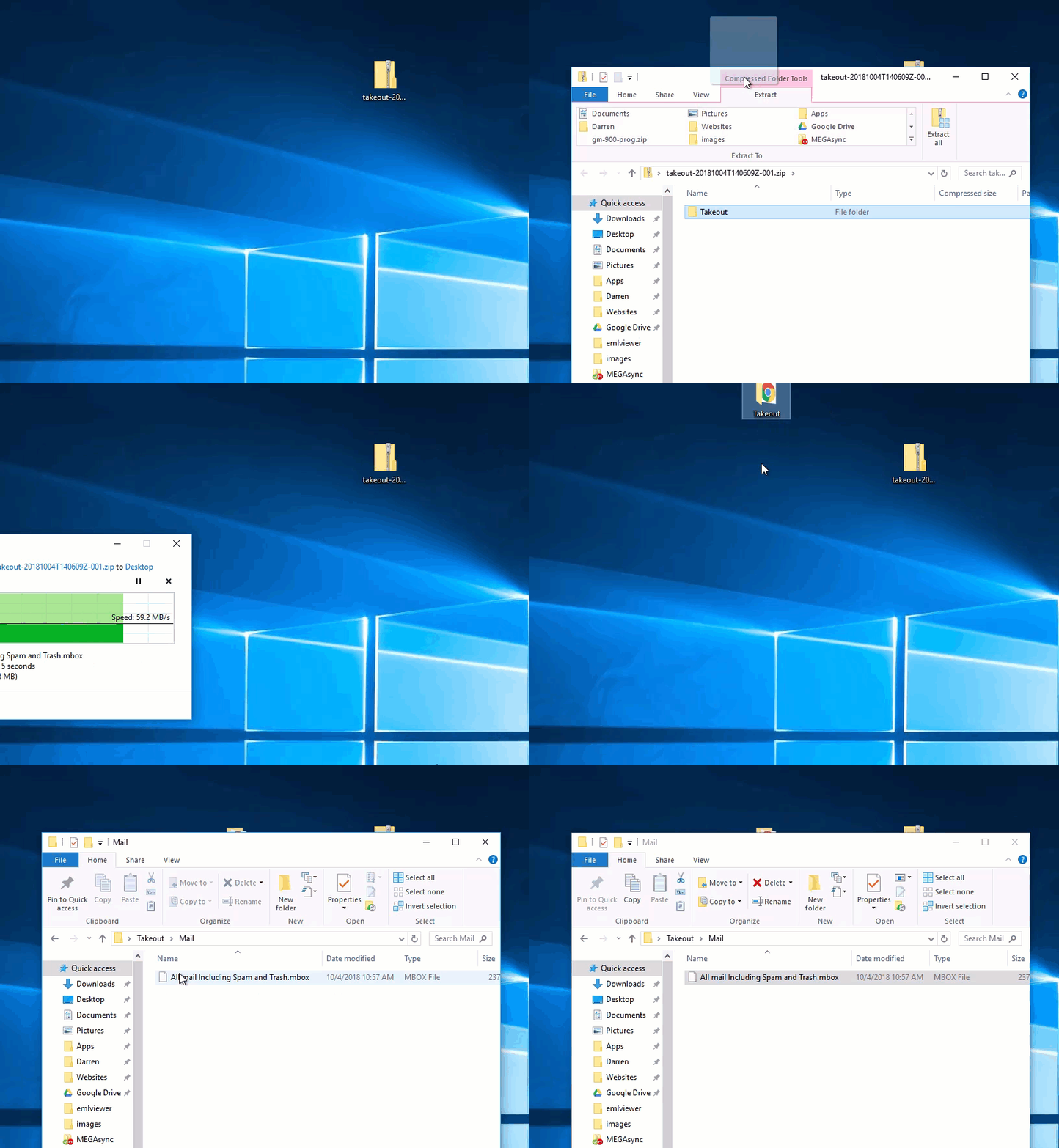
First, extract your MBOX file from the compressed tgz or zip. Most Windows users can open a zip file by clicking on it.  Next drag the folder inside of the zip file to your desktop. 

Animated Gif shows how to access your Gmail MBOX file from a zip archive.
How to remove the Gmail MBOX file from zip archive.

Second, Download and install the free trial of MailDex by Encryptomatic LLC. MailDex is a personal archiving system.  It lets you open Gmail MBOX files, as well as Outlook .pst/.ost/.msg and .eml/.mht email files.

The MailDex trial will run for 15 days. This blog is operated by Encryptomatic. The code-signed software should be downloaded directly from our website to ensure you get the latest software release.  If you have any questions or need installation assistance, reach out to the MailDex support team.

Start the MailDex app on Windows, and now you're ready to import your Gmail e-mails into MailDex.

When MailDex starts, first you will create a new "Project."  E-mail files are added to projects.   You can have as many MailDex projects as you wish, each containing as many e-mails as you wish to add. To add a project, select the "Add Project" button and give your project a name.

I will name my project "My Gmail Archive."

Screen image showing the location of MailDex software's "Add project" button.
Location of "Add Project" button in MailDex.

To add my Gmail MBOX file to my new project, first I click on the project to highlight it. Then, I will select the "Import E-mails" button.

Screen image shows the location of the Import Emails button.
MailDex "Import Emails" Button Location

Click "Add File" and locate your Gmail MBOX archive, then click OK to continue.

Screen image showing how to select the location of your GMAIL MBOX archive.
Find your Gmail MBOX file and click OK.

MailDex will begin immediately building an index of your Gmail archive. The archive I'm working with today was rather small with only about 8,200 e-mails.  Indexing was completed almost instantly.

Now you're ready to search your Gmail archive. The simplest way to search is to type a term in the search box.

In the next image, I've typed my name in the search box and clicked the magnifying glass icon.   MailDex instantly returned many results.

Screen image showing how to search indexed Gmail messages in MailDex.
Searching your Gmail archive with MailDex.
MailDex supports complex searches of your Gmail archive by clicking the "Search" button. You can then enter multiple terms and enter other search criteria.
Software image showing the advanced search function of MailDex.
MailDex advanced email search page.

Now that your Gmail e-mails are safely indexed in MailDex, there is a lot you can do with them.  Many export functions allow you save your emails as PDF documents, or as a CSV file, and much more.

For information on purchasing MailDex, visit the product home page.

Thanks for reading! If you have any questions, post them below or reach out to our support team.


Saving Private Gmail: How to Backup Your Gmail e-mail Messages

Saving Private Gmail

Gmail logo


As our smart phones replaced desktop computers for much of our daily communication,  Google's Gmail service made e-mail truly mobile and convenient.

If you have a Gmail e-mail address, it has probably become your main identity as you move about the internet. Gmail is nearly 15 years old now, and is embedded deeply into the lives of many users. 

Your Gmail e-mails are a document of your life that you should care about.  Emails to loved ones, perhaps containing photographs. Records of online purchases.  Business documents.  Your digital life is an important digital document that you may wish to preserve for posterity.

Recently, Google has made it easier for users to download their Gmail history as a MBOX file.  MBOX is an open format for bundling e-mail messages.  This article will show you how to download your Gmail e-mails, and then archive them in Encryptomatic's MailDex.  

MailDex is an email manager/archiver that lets you organize messages, even if they are stored as MBOX files, or Outlook PST or OST files, or individual EML or MSG files.  MailDex helps you make sense of not only your Gmail archive, but all of the e-mail files you've kept on USB drives over the years.

Sign into your Google account, and lets get started.


Downloading Your Gmail e-Mails

Step 1. Go to Google's Takeout page and select the data you want to export. If you only want to export your Gmails, click "Select None," then scroll down and select "Mail".


Screen shot showing how to select "All Mail" in Google Takeout to download your Gmail messages as a MBOX file.
Select Mail Option

Scroll to the bottom of the page and click "Next."

Step 2.  On the "Download your data" page, you can set the compression format for the Mbox file (tgz or zip).  Since the MBOX file with your Gmails will be quite large, Google compresses the file to save space.  Zip is the most common format and your computer probably already supports opening zip files.


Screen image: "Your account, your data. Export a copy."


You can also set the maximum size for the archived MBOX file before Google splits it into two or more archives.  The maximum selectable size is 50 GB.

Finally, choose how Google should deliver your Gmail archive.  You can receive an email to your Gmail address containing a link to download the file over https.  Other options including saving the file directly to your Google Drive,  Dropbox, OneDrive or Box.

Click "Create Archive" to continue.

Google responds with the message, "An archive of your Mail data is currently being prepared"


Please note that archives may take a long time (hours or possibly days) to create. You will receive an email when your archive is complete."


Screen image of Google email archive message.


Now watch for an e-mail to arrive in your Gmail account that looks like this:


Screen image of email with link to download Gmail MBOX file with email history.

Clicking "Download archive" will send you to the "Download Data" page.


Screen image of Google's Download Data page, where you can download a copy of your Gmail e-mails as a MBOX file.
Download Your Gmail Data
Click "Download" and save your file somewhere convenient.  

Congratulations! You've just made a complete backup of your Gmail history!

In the next article, we will show how to import that MBOX file and all of the e-mails it contains into Encryptomatic MailDex.

See you there!