Fargo, ND - The development team at Encryptomatic®, LLC is pleased to announce the release of Pst Viewer Pro™ 2023. This is a major release that is recommended for all customers. It resolves more than thirty issues and numerous improvements and enhancements.
For this release, we are including our new proprietary email parsing engine which improves speed, processing, and rendering accuracy. This is now the same engine used in our advanced MailDex® email manager.
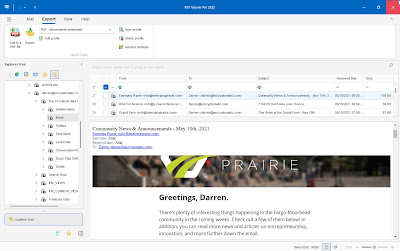
Pst Viewer Pro™ is the original multi-format email viewer for Windows. Since 2006, PstViewer Pro™ by Encryptomatic® LLC has been used by individuals and professionals to organize, discover, print, and convert Outlook emails to PDF and many other formats. Outlook is not required to be present on your computer for PstViewer Pro to work. It works across Outlook PST OST MSG email files, and also MBOX, MHT, EML emails.
How to Upgrade to Pst Viewer Pro 2023

Customers with a current maintenance and support service are able to upgrade from within Pst Viewer Pro by going to Help > Check For Updates. Please contact our support team if you have any questions or require assistance.
The update can also be installed by downloading the installer from our website.
Customers without a current maintenance and support service are encouraged to contact our support team for upgrade offers.
For more information about capabilities and pricing or to obtain a 15 day free trial, visit the official Pst Viewer Pro home page.
New Features
PVP8-446 Add the ability to 'turn off' remote image download
PVP8-457 Upgraded Email library
PVP8-494 Upgraded the PDF processing engine
PVP8-495 Improved installer packaging
PVP8-493 Added a new "Browse to folder" for Windows 11
Resolved Issues
PVP8-373 Improved Chinese characters decoding
PVP8-401 Improved Mail Actions
PVP8-476 Improved Enumeration process
PVP8-458 Update splash screen copyright
PVP8-459 Underscore before text on most legends
PVP8-460 Update activation window text 2022-2023
PVP8-461 Resolved Error when accessing folder.
PVP8-462 Resolved an email access error
PVP8-463 Software crashed after selecting a folder with MSG files
PVP8-464 Fixed EML to PDF might output a PDF file with 0KB
PVP8-465 Resolved a license activation issue
PVP8-466 Resolved MBOX files load issue
PVP8-467 Resolved display preview file with some MHT files
PVP8-468 Resvolved error, unable to access PST file
PVP8-471 Resolved issue where Property tree may not generate
PVP8-488 Resolved an issue with Explorer tree truncated when scrolling
PVP8-489 Resolved issue where counted search items may be inaccurate
PVP8-490 Improved adding items to favorites
PVP8-491 Resolved issue where file explorer is not working correctly
PVP8-492 Resolved issue with Properties button on Explorer tree
PVP8-497 Improved the Single Export to Docx process
PVP8-498 Resolved an issue with XML export
PVP8-499 Improved displaying duplicate attachments for EML format
PVP8-443 Improved Command-line exports results
PVP8-500 Fixed an Error that could occur during saving attachment in the EML file
Free Trial
PstViewer Pro is available for a 15 day free trial.For more information, visit https://www.encryptomatic.com/pstviewer/ or email us at supportline@encryptomatic.com.
About Encryptomatic LLC
Encryptomatic LLC is a developer of customer-centric Microsoft Office solutions that protect the privacy of our customers email communications. Our products are widely available through an international online distribution network.Founded in 2005, we are based in Fargo, ND, central to thousands of freshwater lakes brimming with Walleye and Northern Pike, where we enjoy outdoor sports, clean air and short commutes.
Encryptomatic® and Pst Viewer Pro™ are trademarks of Encryptomatic LLC
Microsoft® and Outlook® are registered marks of Microsoft Corp.